A clean screenshot of the final scoreboard is all BC Stats needs to read your match. Here is how to take one that is recognised on the first try.
1. Switch to the 2D interface
Bodycam can show the end-of-match screen in 2D or 3D. The 2D version is flat and evenly lit, so text is much easier to read. 3D screenshots are accepted, but perspective and lighting often mean you have to correct values by hand.
2. Wait for the final scoreboard
Take the screenshot only when the match has ended and the final result (WIN or LOSS) is visible. Mid-match or loading screens are rejected as “not an end-of-match screen”.
3. Use one of these shortcuts
| Tool | Key | Where the file goes |
|---|---|---|
| Steam overlay | F12 (default) | Steam → View → Screenshots |
| Windows | Win + Print Screen | Pictures → Screenshots |
| Windows Snipping Tool | Win + Shift + S | Clipboard (save it as a file) |
In Steam's settings you can turn on saving an uncompressed copy – it gives sharper text for recognition.
4. Don't crop or edit the image
BC Stats looks for the whole scoreboard, the header with the map name and the mode icon. Cropping can cut off exactly what it needs. Editing or copying a file can also change its date, and BC Stats uses that date to put your matches in order.
5. Check your nickname
Type your Bodycam nickname exactly as it appears on the scoreboard. That is how BC Stats finds your row. If a result says “needs review”, the nickname is the first thing to check.
What BC Stats needs to see
The analyzer does more than read the K and D numbers. It first decides whether the image is a final scoreboard, then reads the result, map, mode and the row matching the nickname you entered. A screenshot can therefore fail even when one number is perfectly readable if the rest of the scoreboard context is missing.
That is the main reason not to crop. The header can contain the map name and final-result signals, while the mode icon can be in another area of the image. A crop that looks cleaner to a person can remove exactly the context the analyzer uses to classify the screen.
What “needs review” means
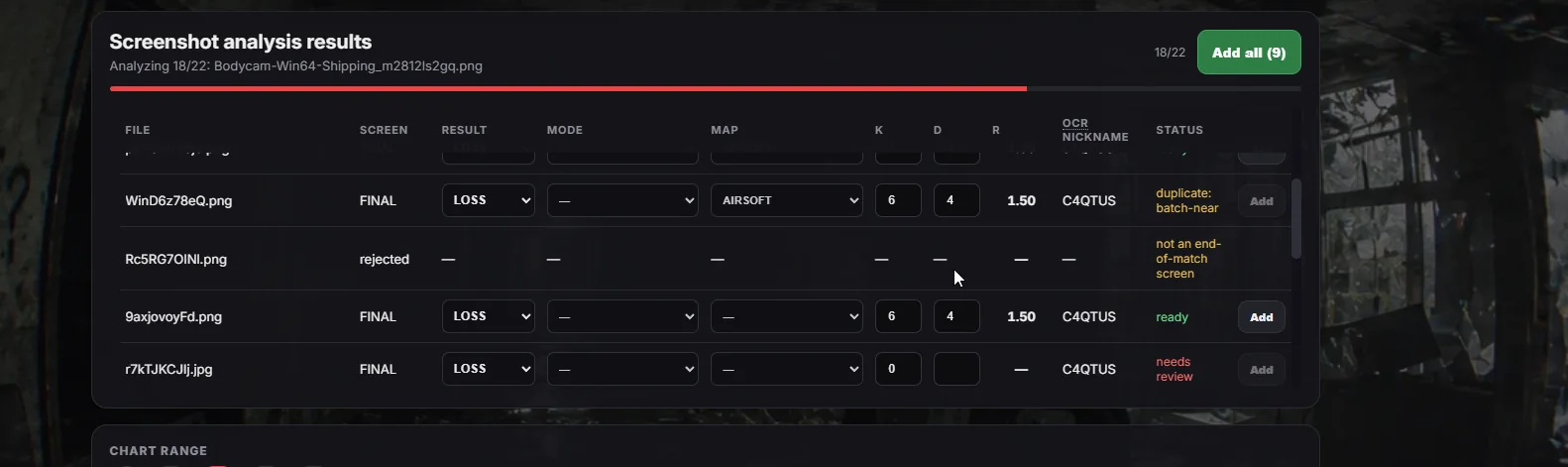
If the analyzer accepts the image as an end-of-match screen but cannot complete every required field, the row is marked needs review. Final-score rows let you correct WIN/LOSS, mode, map, kills and deaths before saving. When K or D changes, the displayed ratio is recalculated from the edited values.
Nickname matching is slightly different. BC Stats uses the nickname typed above the uploader to find your scoreboard row. If that match fails, check the spelling and analyze the screenshot again. Type the name exactly as it appears in Bodycam, including characters such as underscores, dots or hyphens when they are part of the nickname.
2D versus 3D: why the difference matters
The 2D interface is the recommended capture because text is flat, evenly scaled and easier for OCR. The 3D interface can still work, but perspective, lighting and UI placement can make individual characters less reliable. A 3D result should be treated as something to verify rather than something to save without looking.
If you regularly use the 3D view, keep the full image and avoid additional compression. When possible, enable Steam's uncompressed screenshot copy so small scoreboard text keeps more detail.
File dates and batch order
When you select several screenshots, BC Stats sorts them from oldest to newest using the file modification timestamp provided by the browser, with filename ordering as a fallback. Editing, exporting or copying an image can change that timestamp. The match can still be analyzed, but the resulting history order may no longer match the real play order.
For the cleanest history, save the original screenshot files and upload them directly. That also improves duplicate detection because the tracker can compare exact and near-image fingerprints against saved matches and against other screenshots in the current batch.
Privacy: the image stays in the browser
Screenshot OCR and canvas processing run locally in the browser. The screenshot image itself is not uploaded to or stored on the BC Stats server. When you choose Add or Add all, the parsed match record is saved to your private account history so totals and charts can be rebuilt later.
That saved record can include the result, mode, map, kills, deaths, ratio, nickname and source file/date metadata used for chronological ordering and duplicate checks. The image remains on your device.